Seed Promises
Prepare promises that people can understand and take up. Seeding can create one promise or a batch with different requirements.

Before you start
- Sign in to the steward dashboard with access to the selected garden. Get steward access if needed.
- Check the garden name at the top left, then open Garden → Promises. Read the target before signing.
- Have a steady connection for setup and direct changes. New money-reward promises, settlement configuration and payouts are deferred.
- Open the intended pool and season or campaign first.
- Agree the action counts, deadline, team policy and independent confirmers.
Steps
Choose Seed Promises. As an illustrative example, your garden can request seedling-care sessions with a required planting action and a named independent reviewer.
- In What, choose whether the pool offers help or requests it, the kind of promise, its title, and its season or campaign.
- In How Much, set how many promises to create and what each asks for. For garden work, choose the required action rows and counts. Check the team policy and deadline.
- In Proof & Confirmation, choose who can confirm, how many confirmations are needed, and whether taking it up needs steward approval. The provider and contributing team cannot confirm their own promise. A named group must have enough independent people to meet its threshold.
- Leave Does this come with a reward? at No for this release. A displayed old reward or active contract is not permission to create a new money reward.
- In Review, check each answer. Use Add Another if preparing different promises together, then choose Create Promise or Create … Promises, as shown.
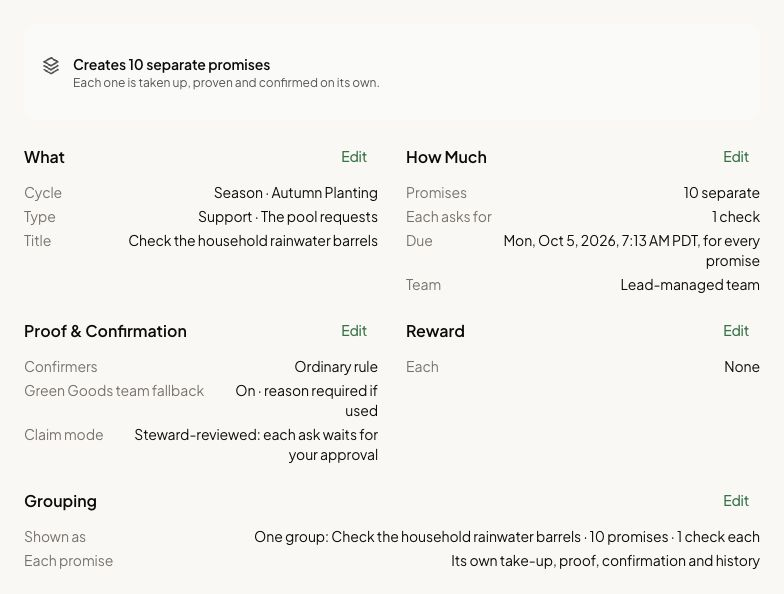
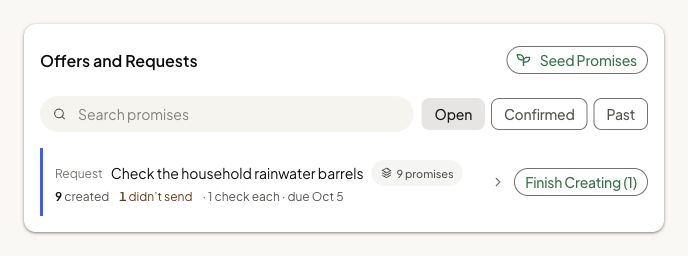
- Read the result for every promise, then return to Promises. A group can show both created copies and copies that didn’t send. Keep the created copies and use Finish Creating (n) to send the rest. An individual queued row offers Send Now or Try Again instead.
Success: the intended promises appear in the pool with the right terms and current status. A partly completed batch stays partly completed; do not recreate its successful rows.
How you know it worked
Each intended promise appears with the correct terms and a result showing whether it has reached the shared record. Queued is not recorded.
What happens next
Members take promises up directly or ask for steward approval. Share Keep a Promise with them.
If something goes wrong
After an interrupted seed batch, return to Promises on the same device and compare the group with your intended list:
- n created counts the copies already published to the shared record.
- n didn’t send counts copies still waiting in your queue. Choose Finish Creating (n) on that group to send those copies. They appear within the group rather than as separate queued rows.
- An individual queued promise has its own Send Now or Try Again control. Read its status and any recorded transaction before retrying.
For example, if a group shows 3 created and 2 didn’t send, choose Finish Creating (2). Do not seed five new copies or recreate the three successful ones. Leave the reward choice at No for this release.
For an app problem, open Settings → Support in the dashboard. On a phone, find Settings under Profile. Share the affected record's link.
Next step
Decide participation requests and follow evidence through to confirmation.