Review Work
Reviewing is the heart of a steward's job. A gardener says "I did this." You look at the evidence and decide whether the garden stands behind it. Your decision is saved next to their work, with your reason, for anyone to read.
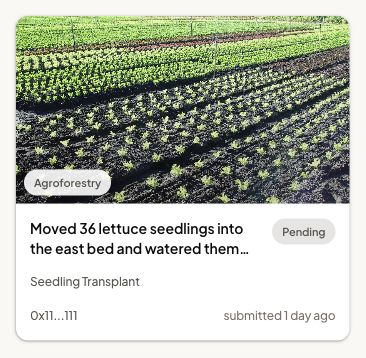
Start with the judgment below, then follow either the dashboard steps or the phone steps.
Before you start
- Be a steward or owner of the garden. Evaluators cannot approve or reject work, and the dashboard does not show them the review queue.
- Review while the action is still open. Once an action's end date passes, no decision can be recorded for work submitted under it.
- You cannot review your own work. Another steward has to.
- Decisions are permanent. You cannot change or undo one, so take the minute it needs.
How to judge a submission
What good evidence looks like
Ask three questions. If the answer to all three is yes, approve.
- Does it show the work? The photos show the thing the action is about, clearly enough to see it. A photo of a field is not a photo of forty seedlings.
- Does it match what was claimed? The numbers and notes fit what you can see, and fit what you know about the day.
- Is it this gardener's own work, in this garden? The place, the people, and the timing make sense for your garden.
You know your garden better than any outsider. That local knowledge is the reason a steward reviews, and it is fair to use it.
Choosing a confidence level
Every approval asks how sure you are. Be honest. A funder reading the record later will trust a garden whose "High" means something.
| Level | Use it when |
|---|---|
| Low | You believe the work happened, mostly because you trust the person. The photos alone would not convince a stranger |
| Medium | The photos and details show the work, and nothing looks off. This fits most good submissions |
| High | You saw it yourself, or the evidence is backed up another way: a receipt, a second person, a measurement |
Writing a rejection that helps
A rejection is the gardener's fix list. Say exactly what to change so the next try can pass.
- Name the thing: the photo, the count, the action, the garden.
- Say what would fix it: "Retake in daylight so the rows are visible" is useful. "Not enough evidence" is not.
- Keep it kind. The gardener did the work in the field. You are asking for a clearer record, not doubting them.
A rejected submission cannot be edited. The gardener submits a new one, so your note is all they have to go on.
Steps in the dashboard
Use the dashboard when you have several submissions to get through.
- Open Hub. You land on the Work tab, filtered to Pending.
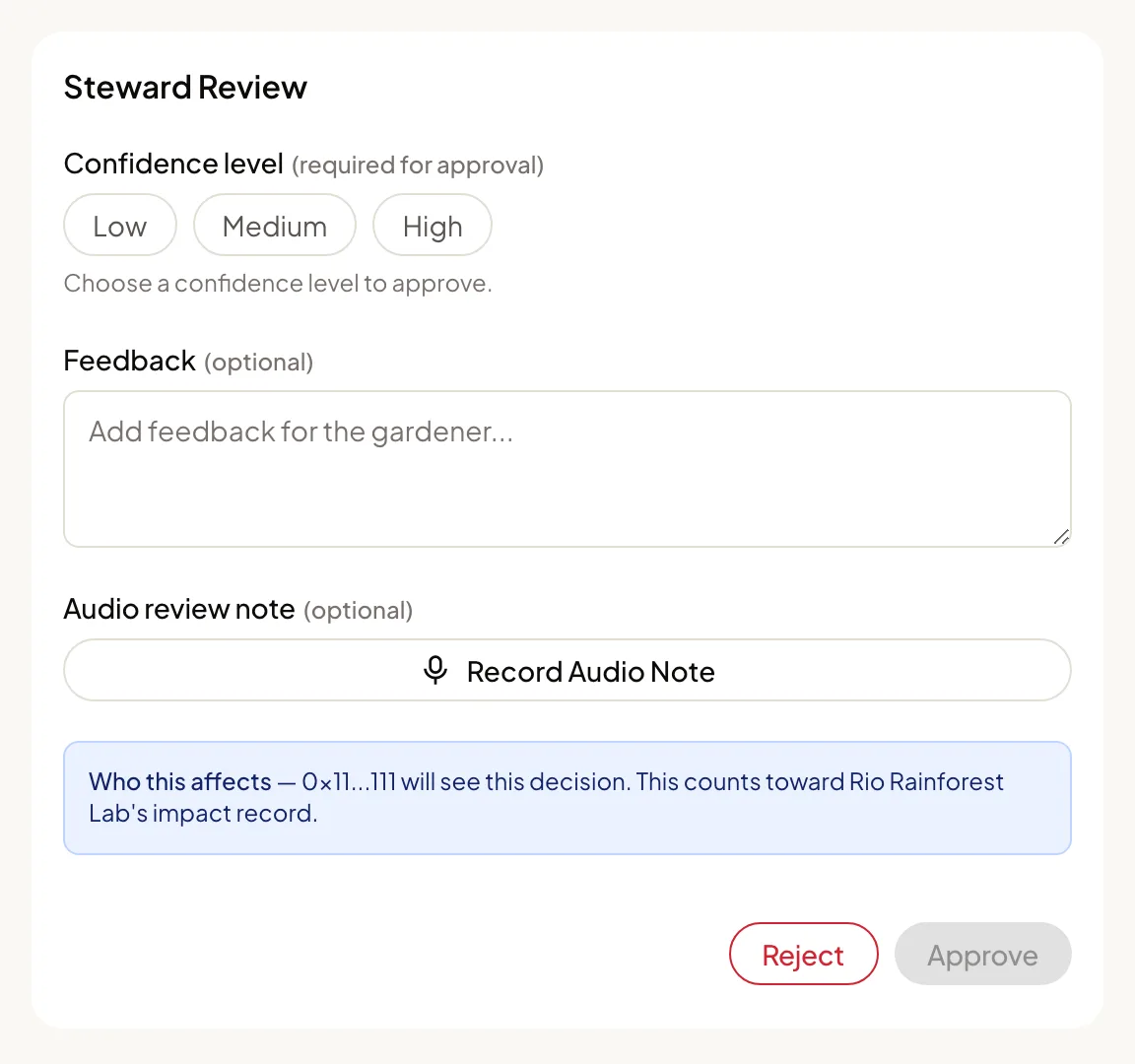
- Tap a submission to open it. The evidence is on the left and Steward Review is on the right.
- Look through Media Evidence, then read Submission Details, including Gardener notes.
To approve:
- Choose a Confidence level: Low, Medium, or High. Nothing is chosen for you.
- Add a note under Feedback if you have one. It is optional. You can also record an Audio review note.
- Tap Approve and confirm.
To reject:
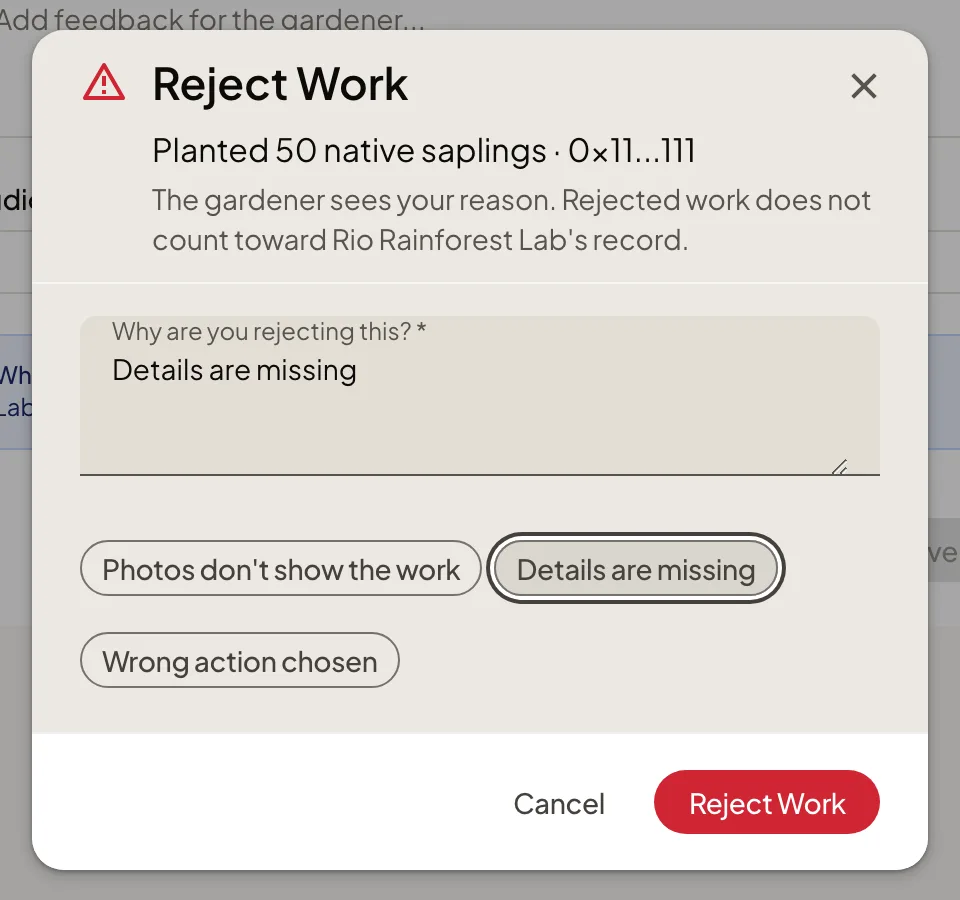
- Tap Reject.
- In Reject Work, answer Why are you rejecting this? A reason is required. The three suggestions underneath are a starting point, and your own words are better.
- Tap Reject Work and confirm.
Steps in the app
Use the app on your phone when you are at the garden.
- Open the garden from Home and tap its Work tab. Or open Your Work, stay on Pending, and set the filter to Needs review.
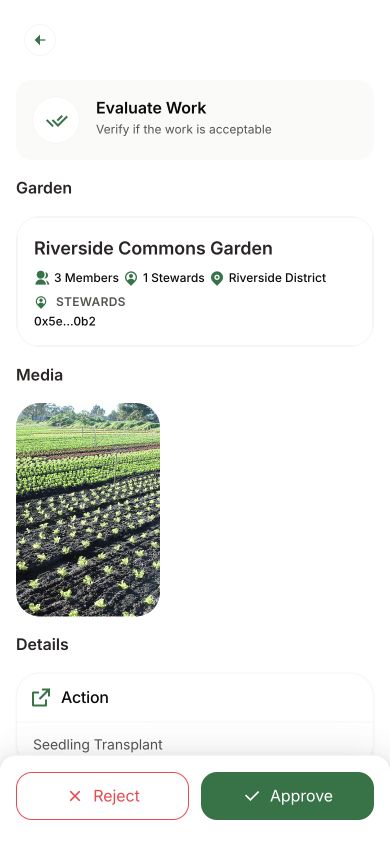
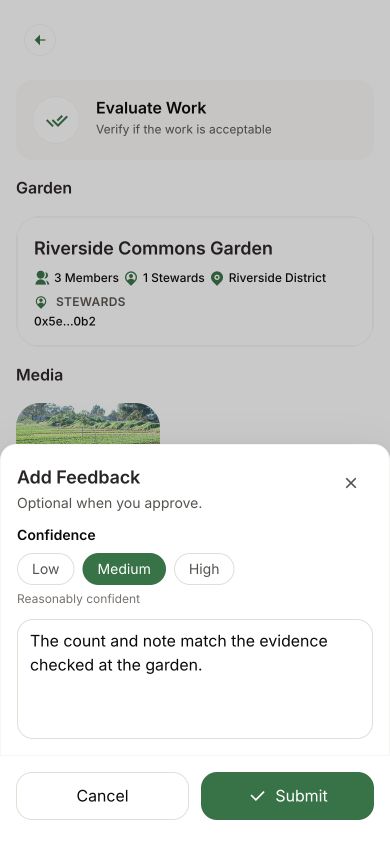
- Tap a submission. Its heading reads Evaluate Work.
- Tap Approve or Reject.
- In Add Feedback, check Confidence if you are approving. It starts on Medium, so change it if that is not right. Write feedback if it helps; a reason is required when you reject.
- Tap Submit and confirm.
With no signal, the app saves your decision on the phone. Send it later from Your Work with Upload all.
How you know it worked
- In the dashboard: a message says Approval submitted or Decision submitted, and the submission leaves the Pending list. Approved work appears under the Approved filter.
- In the app: a message says Work approved or Work rejected, and the submission shows Approved or Rejected with no buttons.
What happens next
The gardener acts next, and Green Goods does not send them an alert. They see your decision and your feedback in Your Work, on the Completed tab. Tell them in your garden's chat, especially after a rejection.
Approved work now counts toward the garden's record. It appears on the garden's page on the public website, and it can be bundled into an impact certificate.
Approving does not pay the gardener. If your garden rewards work from its shared fund, that is a separate step. See Manage Garden Funding.
If something goes wrong
Your account cannot decide
Independent review required means you submitted the work; ask another steward to review it. Owner or steward access required means your role cannot record the decision; ask an owner or steward to add the steward role.
Approve stays gray
Choose a confidence level first. If Action expired appears, the action closed before a decision was recorded. Ask the gardener to submit again under an open action.
Someone already reviewed it
For This work has already been reviewed, open the Review Summary. A second decision cannot replace it.
Sending failed
For Decision failed or Connection unstable, check the status and connection before trying again. In the phone app, a saved offline decision waits in Your Work for Upload all; do not enter it a second time. See Recover Unsent Work.
You decided wrongly
A recorded decision cannot be changed. If you rejected good work, ask the gardener to submit it again and review that new submission. If you approved weak work, tell the garden's owner before it goes into a certificate.
To reach the Green Goods team, ask in the Green Goods community on Discord.
Next step
Once a body of approved work tells one clear story, you can bundle it into a single claim.