Manage Members
Bring people into your garden, give them the right role, and decide how new people get in. Everything here happens in the steward dashboard, in the Community workspace.
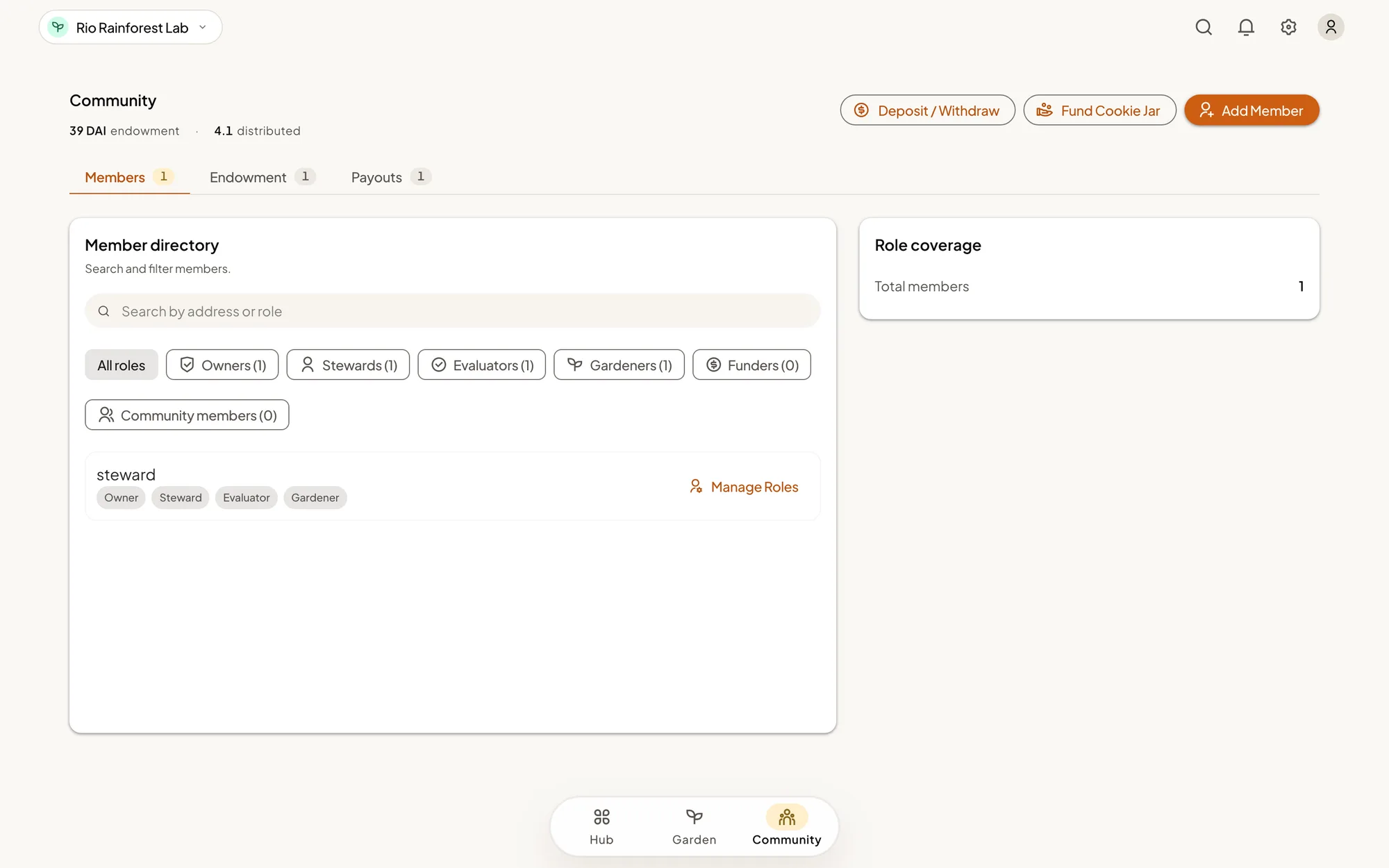
Before you start
- Be a steward or owner of the garden, and check that its name shows at the top left of the dashboard.
- Get each person's Account ID. Gardeners find it in the app, under Profile, on the Account tab. A name ending in
.ethworks too. Ask them to copy it from the app. People often own more than one address. - Be online. Each change is confirmed and saved one at a time.
Add people
- Open Community. You land on the Members tab.
- Tap Add Member.
- Choose the Role. It starts on Gardener.
- Paste the person's address or name under Ethereum Address or ENS Name, then tap Add. They join the Members to add list.
- Repeat for each person. You can mix roles in one list.
- Tap the button at the bottom, which reads something like Add 3 Members, and confirm. You confirm once for each person on the list.
Which role? Gardeners submit work. Stewards run the garden with you. Evaluators write assessments. The steward guide lists all six. Giving someone the steward role also gives them the evaluator and gardener roles.
Roles in a garden
Six roles exist in every garden. A person can hold more than one.
| Role | What it is for |
|---|---|
| Owner | Everything a steward can do, plus renaming the garden and pausing its endowment in an emergency |
| Steward | Running the garden: members, settings, reviewing work, certificates, and funds |
| Evaluator | Writing assessments. An evaluator cannot approve or reject work |
| Gardener | Submitting work, and claiming from the garden's shared fund |
| Funder | Marks a supporter of the garden. It does not open the dashboard |
| Community member | Marks someone in the garden's wider community. It does not open the dashboard |
Giving someone the steward role also gives them the evaluator and gardener roles. Giving someone the owner role also gives them the steward role.
Change or remove a role
- On the Members tab, find the person. You can search by address or role.
- Tap Manage Roles on their row.
- Tap the remove button on the role you want to take away.
- Read Confirm Member Removal, then tap Remove Member and confirm.
Removing a role removes only that one. If you take the steward role away from someone, they keep the evaluator and gardener roles until you remove those too.
Answer requests
People can ask to join a garden, and ask to help steward it. Both kinds wait for you on the Members tab.
- Find Join Requests or Steward Access Requests on the Members tab.
- Tap Check Requests and sign the message. The list does not load until you ask for it.
- Read each request: the person's name, their account, and their note.
- Tap Welcome to let a gardener in, or Approve Steward Access to make someone a steward. You confirm the role first, and then sign to close the request.
- To turn a request down, tap Decline, write a reason under Reason for declining, and tap Decline Request. The person sees your reason.
If you do not recognize someone, ask in the chat your garden already uses before you approve. A steward can add members, approve work, and handle the garden's funds.
If you see neither card, requests are switched off for now. Add people with Add Member, using the Account ID they send you.
Decide who can join without asking
By default a garden is invite only: people join when you add them or approve their request. You can open it so anyone can join as a gardener.
- Open the Garden workspace and tap Edit Garden.
- Turn on Open joining.
- To cap how many people can join this way, turn on Limit gardeners and set Maximum gardeners.
- Tap Save Changes and confirm. You confirm once for each setting you changed.
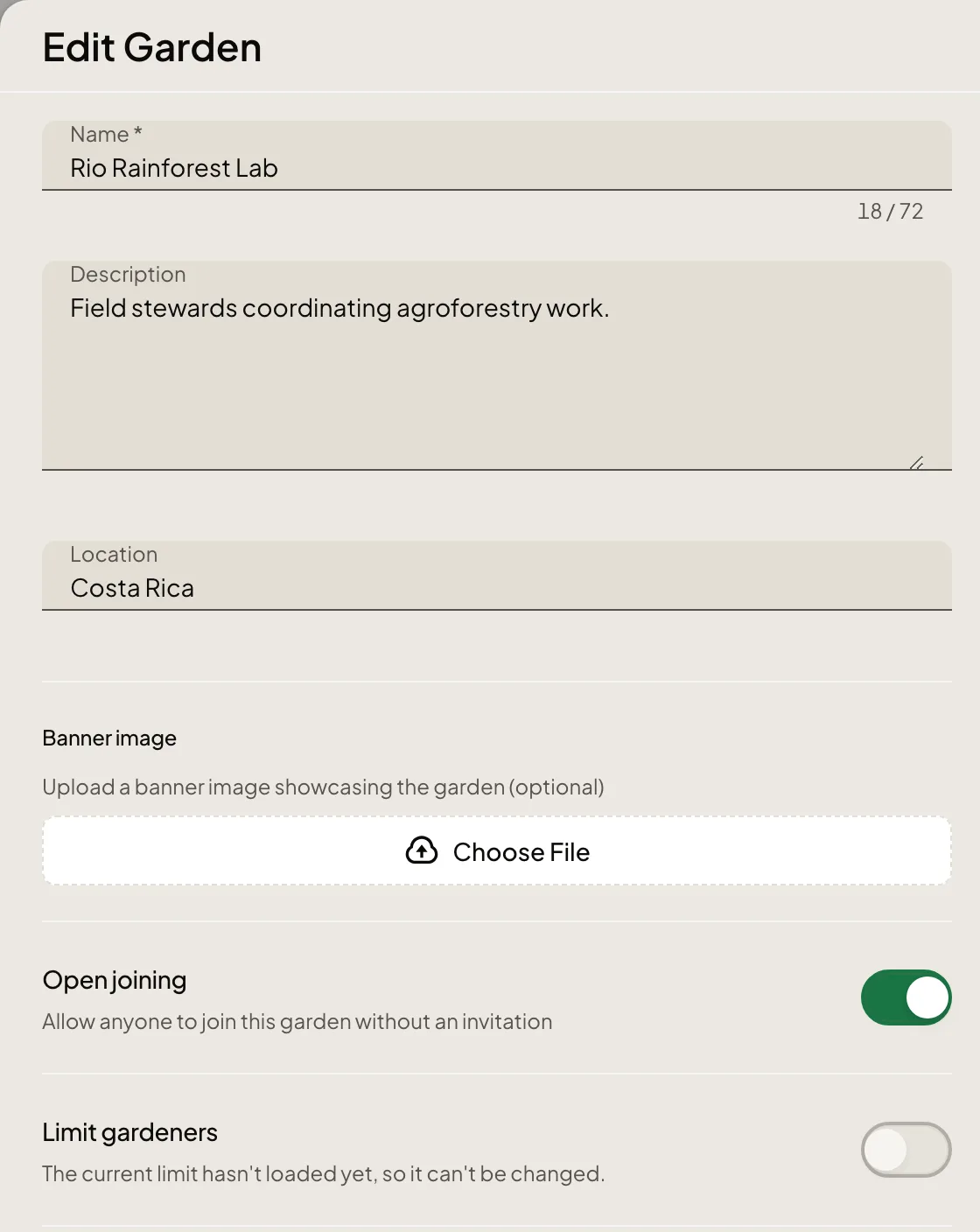
Two things to know about the limit. It counts people who join by themselves, not members you add. And the count does not go down when someone leaves, so raise the limit if you need more room.
How you know it worked
- Adding: a message says the role was added, and the person appears in the member list. The list can take a moment to catch up.
- Removing: the role disappears from the person's row.
- Requests: a message says The gardener was welcomed, Steward access was confirmed, or The request was declined, and the request leaves the list.
- Open joining: gardeners now see Join Garden on your garden's page in the app.
What happens next
The person acts next. A new gardener sees your garden under My gardens in the app and can submit work right away. A new steward can open the dashboard with the account you added. Tell them it is done, because Green Goods does not send them an alert.
If something goes wrong
| What you see | What to do |
|---|---|
| A message says the person is already a gardener, or already has another role | They have that role. Choose a different one, or leave them as they are |
| The address will not go into the list | Check for a missing character. Ask the person to copy their Account ID from the app again |
| You added someone and they still cannot see the garden | They are probably signed in to a different account. Compare the address you added with the Account ID in their app |
| Missing coverage next to the member list | The garden has nobody in one of the key roles: owner, steward, or evaluator. Add someone to it |
| A request shows as still catching up | The role was given. The member list will show it shortly |
| The current limit hasn't loaded yet, so it can't be changed | The dashboard is still reading the garden's limit. Close Edit Garden, wait a moment, and open it again |
| No Community workspace | Your account is an evaluator in this garden, not a steward or owner. Ask a steward to add the role |
To reach the Green Goods team, ask in the Green Goods community on Discord.
Next step
With people in place, agree what your garden is trying to change and how you will measure it.