Manage Actions
An action is a kind of work your garden records, such as planting a tree, sorting a load of waste, or checking a solar panel. Each action says what to photograph and which details to give. When a gardener submits work, they choose an action first.
Actions are shared across all gardens, and the Green Goods team maintains the list. As a steward, your job is to make sure your garden shows the right ones, and to speak up when one is missing or wrong.
How an action reaches your gardeners
A gardener sees an action when both of these are true:
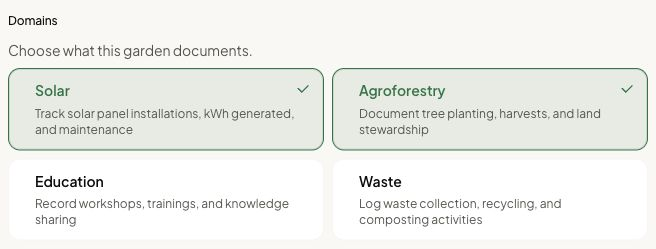
- Your garden covers that area of work. Every action belongs to one of four areas: Solar, Agroforestry, Education, or Waste. Your garden shows the actions for the areas it has turned on.
- The action is open. Every action has a start date and an end date. Before the start it is upcoming. After the end it is closed.
The end date matters twice. Gardeners cannot submit to a closed action, and you cannot approve or reject work once its action has closed. Review before the end date. The public list does not show an action's dates, so ask the Green Goods team when you need to know when one closes.
Before you start
- Be a steward or owner of the garden, and check that its name shows at the top left of the dashboard.
- Know which kinds of work your gardeners really do.
Steps
1. See which actions exist
- Open greengoods.app/actions. It lists the published actions.
- Use the filter to look at one area of work at a time.
- Note the actions your garden needs, and any that are missing.
To see exactly what your gardeners see, open the Green Goods app, tap Garden, and look under Select Your Action with your garden selected.
2. Change your garden's areas of work
- In the dashboard, open the Garden workspace and tap Edit Garden.
- Under Domains, turn areas on or off. At least one stays on.
- Tap Save Changes and confirm.
3. Ask for a new action or a fix
You cannot add or edit an action yourself unless you maintain the list. Ask the Green Goods team in the community on Discord. To make the request easy to act on, send:
- What the work is, in one sentence.
- Which area it belongs to.
- What a good photo shows, and how many photos you want.
- The details to ask for, such as a count, a weight, or a measurement.
- The dates it should be open.
Ask early. A new action has to exist before your gardeners do the work, and it has to stay open long enough for you to review it.
How you know it worked
- Areas of work: after you save, your gardeners see the actions for the areas you turned on, the next time they open the Garden tab in the app.
- A new action: it appears on greengoods.app/actions, and in the app once its start date arrives.
What happens next
Tell your gardeners which action to use for which work. Most rejected submissions come from the wrong action, not from bad work. A short message in your garden's chat ("for the Saturday clean-up, use this action") saves everyone a round trip.
If something goes wrong
| What you see | What to do |
|---|---|
| A gardener sees No active actions at this time | Nothing is open in your garden's areas of work right now. Ask the Green Goods team which actions are open, and to extend or add one |
| A gardener cannot find an action you can see on the website | Its area of work is turned off for your garden, or the action is not open right now. Check Edit Garden first, then ask the Green Goods team about its dates |
| Action expired when you try to review work | The action closed before you decided, and the decision can no longer be recorded. Ask the gardener to submit again under an action that is open |
| Gardeners keep choosing the wrong action | The instructions are probably unclear. Tell your gardeners which one to use, and ask the Green Goods team to tighten the wording |
| No Actions workspace in the dashboard | That workspace is only for people who maintain the list. Everything on this page works without it |
If you maintain the action list
This part is for accounts with deployer access. You have an Actions workspace in the dashboard.
- Open Actions and tap Create Action.
- Basics: enter the Title, the Slug, the Domain, the Start date, and the End date.
- Capitals & Media: choose the Forms of capital the work builds, and add example images if you have them.
- Instructions: set the questions gardeners answer, how many photos the action needs, and what the review screen shows. You can start from a template.
- Review: read it through, tap Create Action, and confirm once.
A finished action reads Action registered. To change one later, open it from the Actions list and tap Edit.
Write instructions the way a gardener would read them on a phone, in the field: one short title, exactly what the photo should show, and only the questions a reviewer needs answered.
Next step
Before work starts coming in, write down where the garden is starting from and what it is aiming for.