Create a Garden
A garden is the home for one community's work: its people, its records, and its funds. This page is for the person who sets a new one up.
Not everyone can create a garden. It needs deployer access, which the Green Goods team gives out. If you want a garden for your community and do not have that access, ask in the Green Goods community on Discord. If your garden already exists, skip to Manage Members.
Before you start
Have these ready so you can finish in one sitting:
- Deployer access on the account you sign in with.
- A name for the garden, and where it is.
- A short description of the community and its work.
- The areas of work the garden covers: Solar, Agroforestry, Education, or Waste. Pick only the ones it really does. They decide which actions its gardeners can record.
- A banner image, if you have one. It is optional.
- Your first stewards and gardeners, as account addresses or names ending in
.eth. This is optional too. You can add people later. - A connection. The form saves your progress as you type, and creating the garden needs you online.
Steps
1. Open the form
- Sign in to the steward dashboard at admin.greengoods.app.
- Tap the search button at the top, or press Ctrl+K (Cmd+K on a Mac), and choose Create Garden.
If you do not have a garden yet, the No garden access yet screen has its own Create Garden button.
The form is one page with three numbered sections.
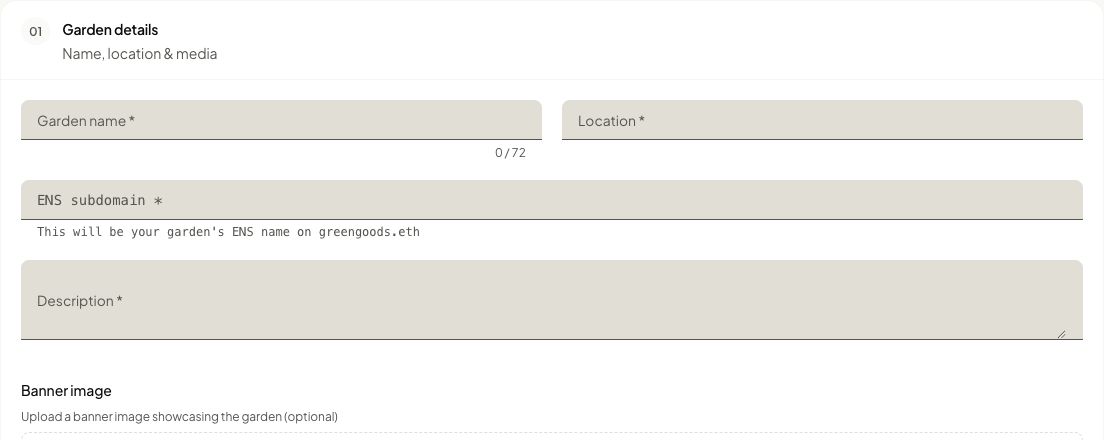
2. Fill in Garden details
- Enter the Garden name.
- Enter the Location.
- Check the ENS subdomain. The form suggests one from the name. It becomes the garden's short web name, ending in
.greengoods.eth, so keep it simple. - Write the Description.
- Add a Banner image if you have one.
- Under Action domains, choose the areas of work.
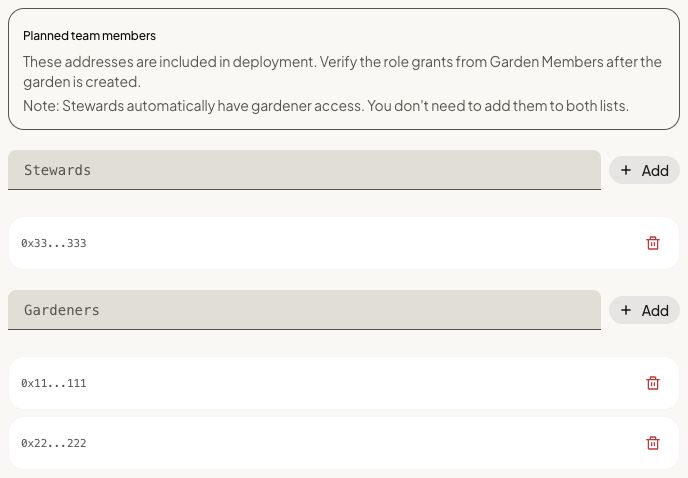
3. Add your first team
- Under Stewards, paste an address or name and tap Add. Repeat for each steward.
- Do the same under Gardeners.
Stewards can already do everything a gardener can, so you do not need to add them to both lists. You can leave both lists empty.
4. Review and create
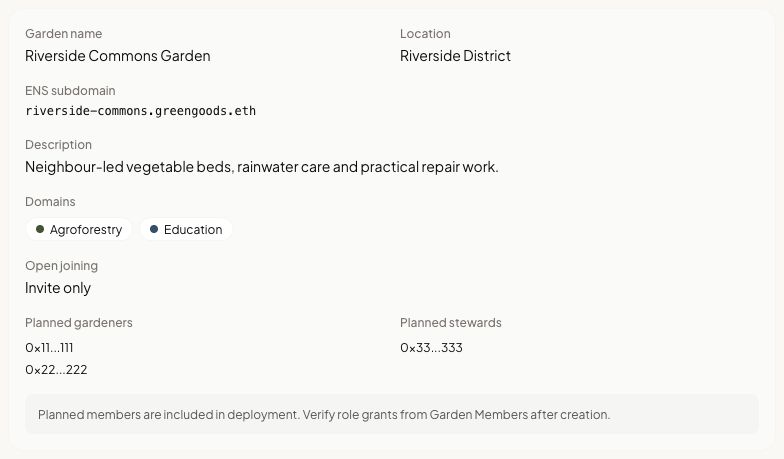
- Read Review & deploy. It shows everything you entered.
- Fix anything that looks wrong. A new garden starts as Invite only. You can open it up afterwards.
- Tap Deploy Garden and confirm.
- Keep the page open until it finishes.
How you know it worked
- A message says Garden created.
- The dashboard takes you to the Garden workspace.
- If you added people, a second message asks you to Verify planned members.
You are the garden's first owner.
What happens next
You act next. The garden exists, and it is empty and closed.
- Check the team. Open Community and confirm the people you added are listed with the right roles. See Manage Members.
- Decide who can join. The same page shows how to turn on open joining.
- Check the garden's funds. A new garden normally comes with a shared fund and an endowment already in place. If Community shows that either is missing, ask the Green Goods team.
If something goes wrong
| What you see | What to do |
|---|---|
| Unauthorized when you open the form | Your account does not have deployer access. Ask the Green Goods team |
| A field is marked as required | Fill it in. The garden name, location, ENS subdomain, description, and at least one domain are all needed |
| This name is already taken | Change the ENS subdomain to something else |
| You're offline | Reconnect, then tap Deploy Garden again. What you typed is still there |
| Cannot deploy yet | The form does not think it is complete. Check every field in section 01, then try again. If every field is filled and it still appears, tell the Green Goods team |
| Transaction canceled | You closed the confirmation. Nothing was created. Tap Retry Deployment when you are ready |
| Awaiting wallet execution | Your wallet accepted the request and it has not finished. Open your wallet and approve or finish it there, then tap Check confirmation. Do not deploy a second time while this one is waiting |
| Transaction failed | Read the message under it, then tap Retry Deployment. With your own wallet, the usual cause is not enough ETH for the fee |
| A person you added is not listed afterwards | Give the list a moment to catch up. If they are still missing, add them from Manage Members |
Creating a garden is one transaction on the Arbitrum network. It can include a small fee for registering the garden's web name, so the account you create it from needs some ETH there.
Next step
The garden exists. Now add its people and decide who can join.