Recover Unsent Work
Find the work you already saved, read why it is waiting, and send it without losing it or recording a duplicate. Start with the item's label in Your Work.
Reopen the saved item before recording it again. An item marked Checking may already have been sent, so wait for the app to resolve it before trying anything else.
Before you start
- Open the installed app, signed in to the account you used when you recorded the work.
- Get a steady connection before you send. Looking at what is waiting works offline.
- Keep the app's saved data. Do not clear its storage or remove the app while you have unsent work. That can remove the copy you need to recover.
Steps
1. See what is waiting
- Open Home and tap the Your Work button at the top. It shows a number while anything is still on your phone.
- Stay on the Pending tab. Each item carries a label that says where it stands.
Look for your item's label:
- Draft: tap it to finish where you left off.
- To upload: connect, then tap Upload all. If the line says Preparing to upload or A photo is still converting, give it a moment.
- Checking: the app is finding out whether it was sent. Wait; do not record a duplicate.
- Can't upload: open it and read the reason. Use step 3 below.
- Didn't upload: a try failed. Open the saved item and tap Upload now when your connection is steady.
- In review: it reached the garden's record. Your steward acts next.
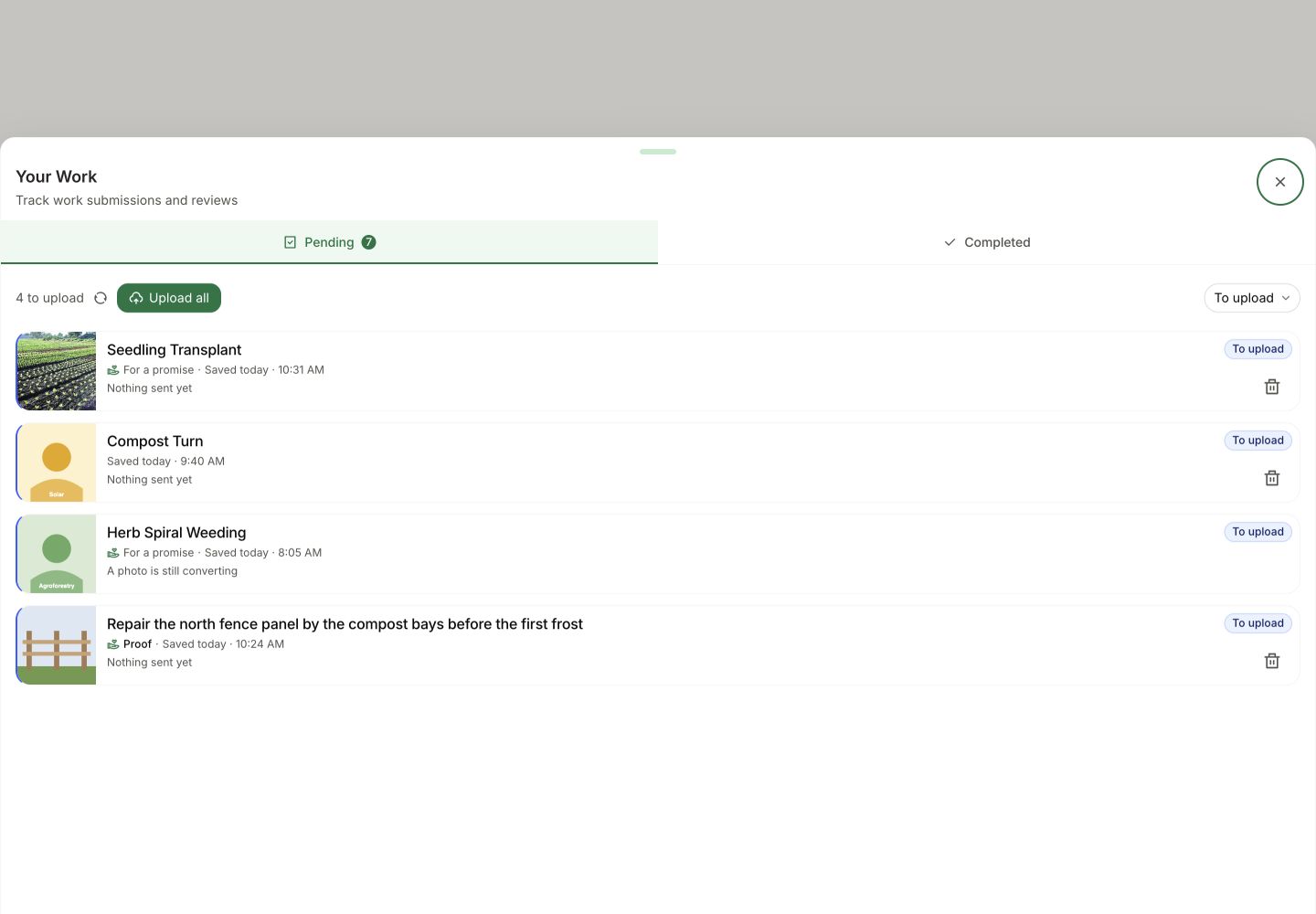
These labels describe the work record. Photos and details may already be public before you send it. Read what becomes public.
2. Send it
- Tap Upload all when you are online and an item is ready. A spinning Upload all button means preparation is still running. If you see Prepare now, tap it and wait for Upload all to become ready.
- Confirm when your phone or wallet asks. A long list goes out a few items at a time, so you may be asked more than once.
- Check the item labels. In review means that record arrived. Checking means the app still needs to confirm what happened; do not record it again.
If you cancel the signing confirmation partway through, items already sent stay on the garden's record. The rest stays saved for another try. Read the labels before tapping Upload all again.
To send just one item, tap it, then tap Upload now.
3. Fix what will not send
Tap an item marked Can't upload or Didn't upload. The top of its page says what happened, and the bar at the bottom offers your choices.
Discard permanently removes this saved item's photos and notes from the app on this phone. Make sure you still have the original photos, and copy any notes you need before choosing it. The app cannot restore a discarded item.
Removing the local item does not delete media already prepared in public storage. Those files can remain public even if you never sent the work record. See what becomes public.
- Action ended or Action removed: ask your steward whether the action can be made available again. Keep the saved item while you check. If it can reopen, tap Try Again. If it cannot, ask which action to use before discarding and recording a replacement.
- Not a member: join the garden, then tap Try Again.
- Not in this garden: ask your steward which action to use. Record a replacement under that action only after resolving the saved item.
- A photo won't convert: the saved photo cannot be read. After keeping any photos and notes you need, Discard the item and record it again with a different photo.
- The record refused it: tap Try Again once. If it fails again, send your steward the garden, action, and exact message you see.
After Try Again, wait for preparation to finish, then send the saved item with Upload now or Upload all. Try Again alone does not send the work record.
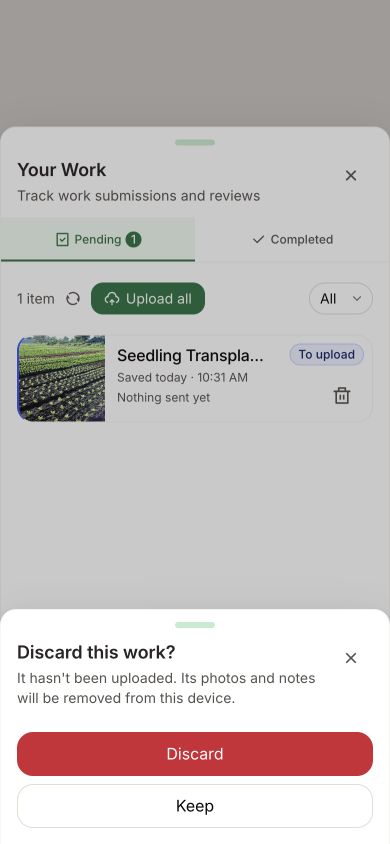
If you choose Discard, a confirmation asks Discard this work? Tap Keep to leave the saved item in place, or Discard only when you are ready to remove it. The app does not offer discard while a record may already be on its way, or while it is actively preparing online.
How you know it worked
- The item's label reads In review.
- A message says how many items were uploaded and that they were saved to the garden's record.
- The number on the Your Work button drops.
Promise actions waiting on this phone
A promise action can have its own saved or sending status. Return to that garden's Promises, open the same record, and read the queued action before using its send or retry control. Your Work → Pending also holds queued proof when the proof flow directs you there. Do not treat every promise action as an ordinary work upload or create another promise to replace an uncertain send.
Taking back an untaken offer or request, joining a team, and choosing Send to the Stewards after Not Yet need a connection. A saved explanation has not put a promise under review; if sending fails, the promise stays ready to confirm. Check the current record before retrying. These actions do not become offline promises to act later. See Make a Promise for the action-specific next step.
What happens next
Your steward reviews what you sent. See Track Your Work for what each result means.
What keeps your work safe, and what does not
The saved copy of a draft or queued item lives in the app's storage on the phone you recorded with. That copy is what lets you finish or retry it.
- Closing the app or signing out does not delete saved work. Return on the same phone and sign in to the same account. A restart or ordinary update keeps it when the app's storage remains intact.
- Discard removes the saved item. Clearing Green Goods' site data or browser storage removes local work too. Removing the app can also remove it; do not use either as an upload fix.
- Another phone does not recover unsent work. If this phone or its app storage is lost, the app cannot restore the saved item. In review means the record has reached the garden and no longer depends on this local copy.
When you are online, the app can prepare waiting work in the background. That includes uploading its photos and details to public storage. Preparation is separate from sending the work record. Prepare now also prepares files; it is not a private preview. Upload all or Upload now, with your confirmation, sends the record.
Files already uploaded during preparation cannot be deleted through Green Goods. Discarding the local item does not make them private. Only record photos and details you are comfortable making public; see Is what I upload private?.
Tips for the field
- Before you leave a place with signal: open Your Work and send what is waiting. Wait for In review.
- Before you leave the work site: check that today's work is in Your Work, marked Draft or To upload. If it is there, it is saved.
- Finish drafts soon. The app keeps up to 20 drafts. Photos picked long ago can become unreadable, and the app will ask you to add them again.
If something goes wrong
You cannot find Upload all
Check your connection and set the Pending filter to All. If the button says Prepare now, tap it to let the app prepare waiting work. Not uploaded yet with “still being prepared” means it needs more time.
The app asks you to sign in, or an item is missing
Sign in to the account you recorded with. Drafts and waiting work belong to that account on this phone. If you see Work is waiting to sync, tap Review to open the list.
Your connection dropped
If Connection unstable says the work was not sent, try that saved item again on a steady connection. Checking your upload means the outcome is uncertain: let the app check before retrying. Read the item's label before recording a replacement.
Some items went through, but others are waiting
A batch can stop after sending some items. Keep those marked In review; do not submit them again. Wait on Checking, and use Upload all for items still ready to send when your connection is steady.
The same problem returns
Tell your steward the garden, action, approximate recording time, item label, and exact message. Never send a password or recovery phrase.
To reach the community, ask in Discord.
Next step
Once an item reads In review, follow it through to your steward's decision.