Make a Promise
Make an offer when you can provide help, or a request when you need it. A promise records the agreement and who will confirm it was kept.

Before you start
- Sign in with the account that joined this garden. Visitors can read records; taking part requires membership.
- Check that the garden has an open pool. New money rewards and promise payouts are deferred.
- Photos and details can become public before you send the work record. Use your own evidence and read the privacy guidance.
- Agree the amount, deadline, team and evidence with the people involved.
Steps
Read the agreement
- Open your garden in the app and tap Promises.
- Open a promise and read its terms, work requirements, team, and confirmation details. A season is the garden's main period of work; a campaign is a focused effort beside it. A promise can also stand on its own.
- Check which part is yours:
| Kind | Who provides the help? | Who normally confirms it? |
|---|---|---|
| Offer | The person making the offer | The person it is made to or who takes it up |
| Request | The person who takes up the request | The person who asked |
A promise can name a group of confirmers instead. The person doing the work and everyone on its contributing team are excluded from confirming it, including through a steward fallback.
Example: you offer a seedling-care session, and a neighbor takes it up. You do the session and supply evidence; your neighbor confirms it. If your neighbor requests the session first and you take it up, you still provide the help and your neighbor still confirms it.
Make your offer or request
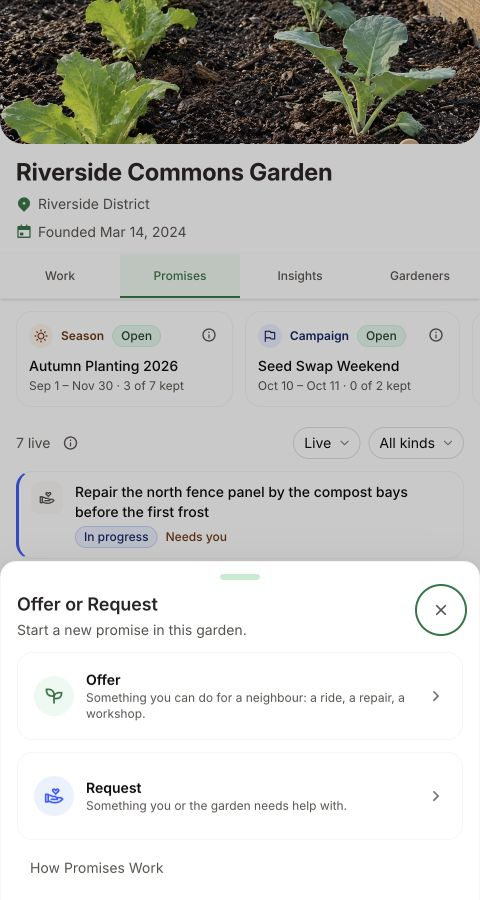
- Use + in the garden's Promises and choose an offer or request.
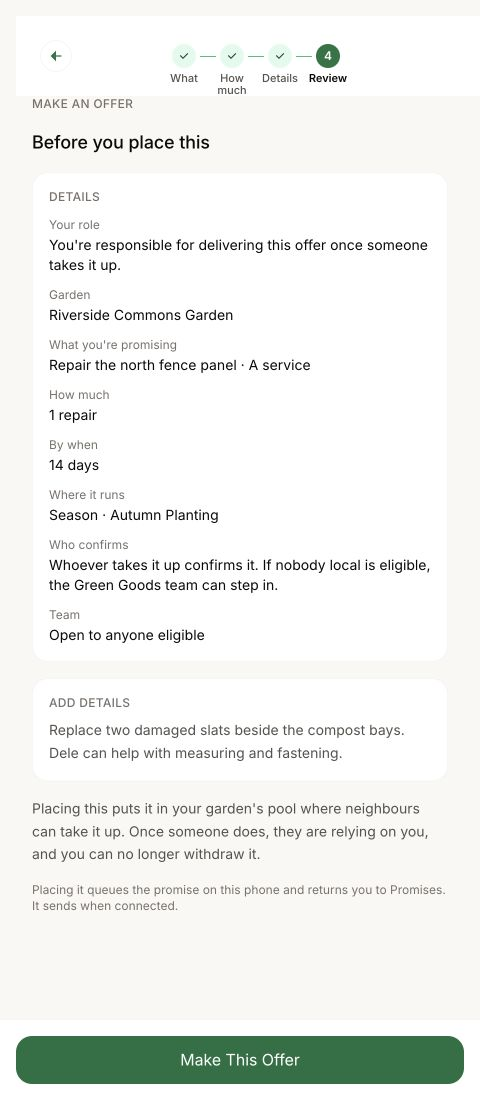
- Follow the questions about the kind of help, how much, and its details. Garden work names the garden's actions; other help uses proof such as photos, notes, or links.
- Read the final review, including who acts next, then choose Make This Offer, Make This Request, or Request This Work, as shown.
Withdraw before it is taken up
Before anyone takes it up, the creator may see Withdraw This. It needs a connection and a reason; review Withdraw This Offer or Withdraw This Request before confirming. Once someone has taken it up, ask your steward about the existing record. Withdrawal is not a universal undo, and taking it up is different from joining a team, which also needs a connection.
How you know it worked
The promise appears in Promises with the intended terms and a status showing it reached the shared record. A waiting or sending item has not finished.
What happens next
Someone takes the promise up. If steward approval is required, that decision comes first. Share Keep a Promise with the person providing the help.
If something goes wrong
A saved item on this phone is not yet a shared record. Keep the same account and device, check the status and history before retrying, and avoid duplicates. Recover Unsent Work explains the send states.
If Promises are not ready here yet appears, ask your steward whether the pool is open. Withdrawal needs a connection and a reason; after take-up, ask your steward about the existing record.
Ask your steward about the agreement or record. For an app problem, open Profile → Help.
Next step
Take up an available promise and record the contribution it needs.