Keep a Promise
Take responsibility for a promise, then record what you contributed. Garden work and other help use different evidence paths.

Before you start
- Sign in with the account that joined this garden. Visitors can read records; taking part requires membership.
- Check that the garden has an open pool. New money rewards and promise payouts are deferred.
- Photos and details can become public before you send the work record. Use your own evidence and read the privacy guidance.
- Read the promise before joining: required work, deadline, team policy and who confirms it.
Steps
Check your part in the promise
- You made an offer: you are already its provider. Wait for someone to take it up, then record your contribution below. You cannot take up your own offer. Before someone takes it up, you can withdraw it if you can no longer provide the help.
- You want to fulfill someone else's request: open it and choose Take This Up. Once accepted, you are its provider. If it shows Ask to take this up, wait for the steward's decision before making plans; asking does not reserve the promise and someone else may be accepted first.
- You made a request: wait for a provider to take it up. You confirm their delivery; follow Confirm a Promise when it is ready.
- You want to receive someone else's offer: taking it up makes you the recipient and confirmer. The provider records the work or proof. Follow Confirm a Promise when it is ready for your review.
Continue below if you are the provider or a contributing team member.
To help on an existing team: open the promise's Team section. If it offers Join the Team, connect to the internet, choose it, and wait for your name to appear in the team record. If the lead chooses who joins, ask them instead. Joining does not take the promise up again or count as a contribution; add your actual work or proof before the team is fixed.
Watch the saved or sending status after making or taking up a promise. A promise waiting on this phone is not yet a shared agreement. Return to Promises and use its send or retry control when the status asks you to.
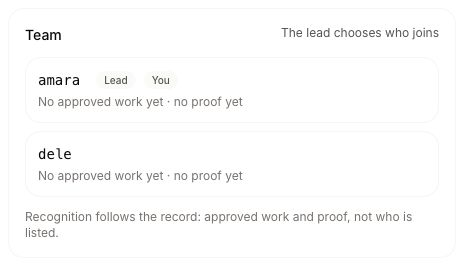
Record your contribution
When a promise becomes ready for confirmation, its team and contribution record are fixed. For garden work, counted approvals and any required assessment can make this happen automatically; there is no manual Send for Confirmation step. For other proof, read the warning before sending. Joining the team alone does not count as a contribution.
Use the evidence path the promise asks for:
Garden work
- Open the promise and choose Link Work. Pick an existing submission that matches the garden and action, or start the work submission offered for the required row.
- If the same action appears more than once, choose the exact requirement it fulfills. Check the submission before choosing Link This Work.
- Follow the work through review. Linked, Approved, and Counted toward this promise are different results. An approved item may still say Approved · waiting for a steward to count it; ask your steward to check it rather than submitting the work again.
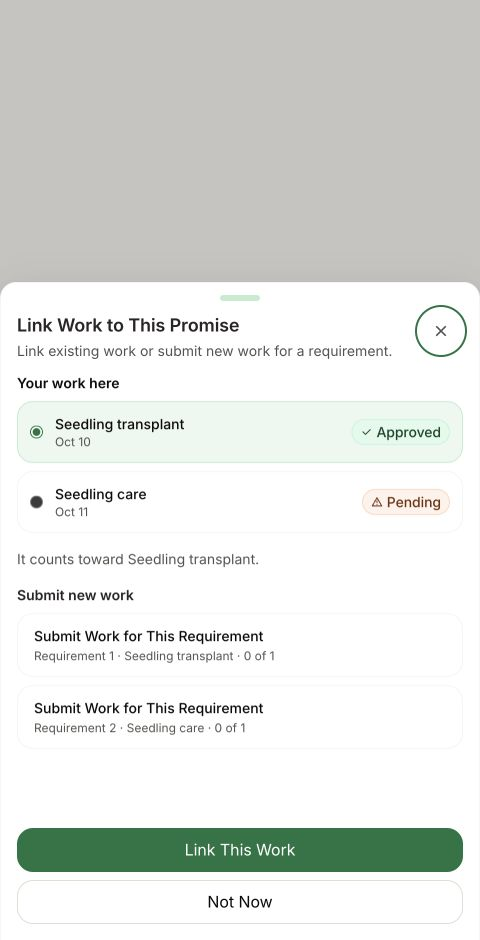
Work does not need a promise to be valid. When starting from Submit Work, the optional Promise choice can connect it to the right requirement.
Other help or services
- Choose Add Proof, add evidence and a short explanation, then review it.
- Choose Add This Proof. The lead can use Add and Send when offered, or return to the promise and choose Send for Confirmation once the team is finished.
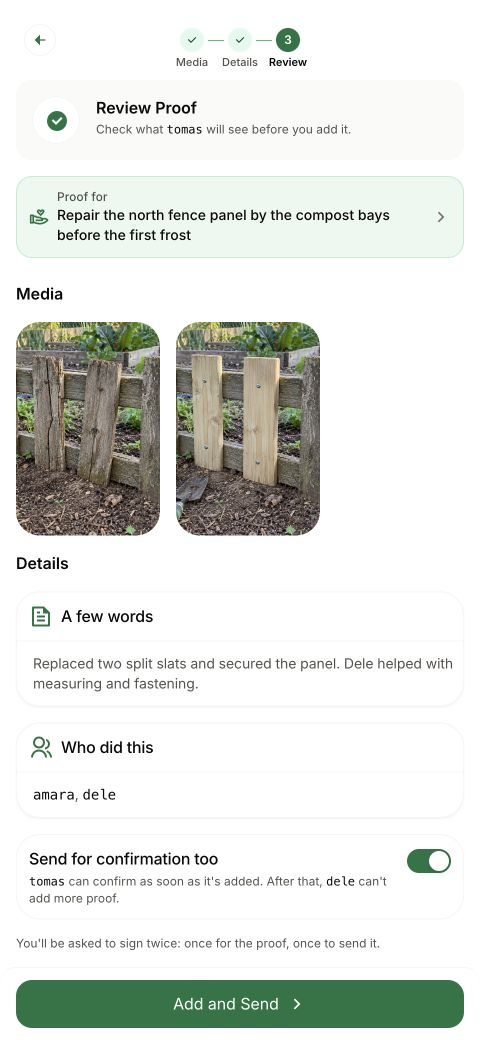
How you know it worked
For garden work, the required approved work is counted and any required assessment is attached. This can make the promise ready automatically. For other help, the lead sends the completed proof for confirmation.
What happens next
The independent confirmer acts next. When enough valid confirmations arrive, the promise reads Kept. Kept does not mean paid.
If something goes wrong
Linked, Approved, and Counted toward this promise are different results. If approved work is waiting to be counted, ask your steward to check it. Do not upload a duplicate.
Team set means new members and contributions can no longer be added. Tell your steward about a missing contribution.
For a waiting take-up, team action or proof, return to the same promise on the same device. Read its saved or sending status before retrying. Recover Unsent Work explains which items can wait on this phone.
Ask your steward about the agreement or record. For an app problem, open Profile → Help.
Next step
Share this with the independent person who checks whether the agreement was kept.