Install and Update the App
Green Goods is an app you install from the website, not from an app store. Installing puts it on your home screen, and it is what lets you record work when you have no signal. You only need to do this once per phone.
Choose Android or iPhone below. Already installed? Go to Update the app.
Before you start
- An Android phone with Chrome, or an iPhone with Safari. Use the browser Green Goods recommends for your phone. It tells you if you need to switch.
- A connection. Installing and signing in both need one. Recording work afterwards does not.
- A few minutes. Allow time for the app to download before you head out.
Install on Android
- Open greengoods.app in Chrome.
- Tap Install App. On a phone it is the first button on the home page. You can also find it at the bottom of the menu.
- Confirm when Chrome asks to install.
- Open Green Goods from your home screen.
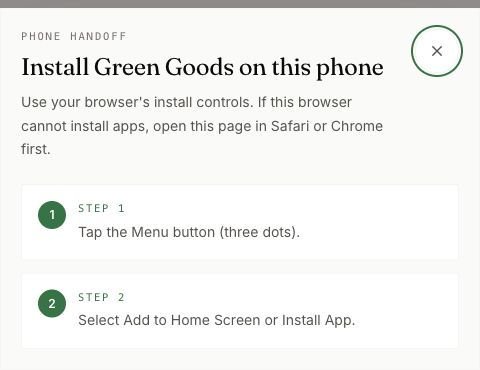
If Chrome does not ask, Green Goods shows Install Green Goods on this phone with two steps instead: tap Chrome's menu (the three dots), then choose Add to Home Screen or Install App.
Install on iPhone
- Open greengoods.app in Safari.
- Tap Install App.
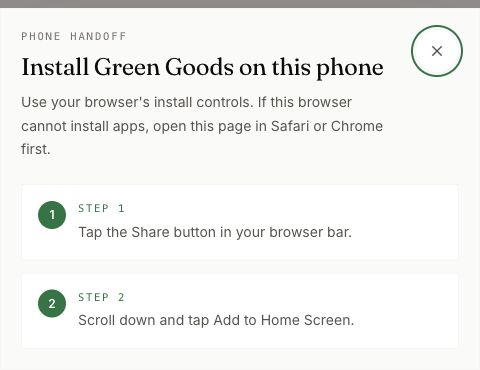
- Follow the two steps Green Goods shows: tap the Share button in Safari's bar, then scroll down and tap Add to Home Screen.
- Open Green Goods from your home screen.
Create your account
Always open Green Goods from the home screen. A browser tab shows the public website, not the app.
A passkey lets you sign in without a password. Your phone or passkey manager keeps a sign-in key. When Green Goods asks you to confirm, you use your fingerprint, face, or screen lock. Choose Create Account to use this route.
If you already use a wallet, Sign in with a Wallet connects that account instead. A wallet and a passkey are different accounts. Choose one route and keep using it so your garden membership and work stay together.
- Tap Create Account.
- Type a name of at least three characters. Write it down somewhere safe. You will need it to sign in on another phone.
- Tap Create Account again, then confirm with your fingerprint, face, or screen lock when your phone asks.
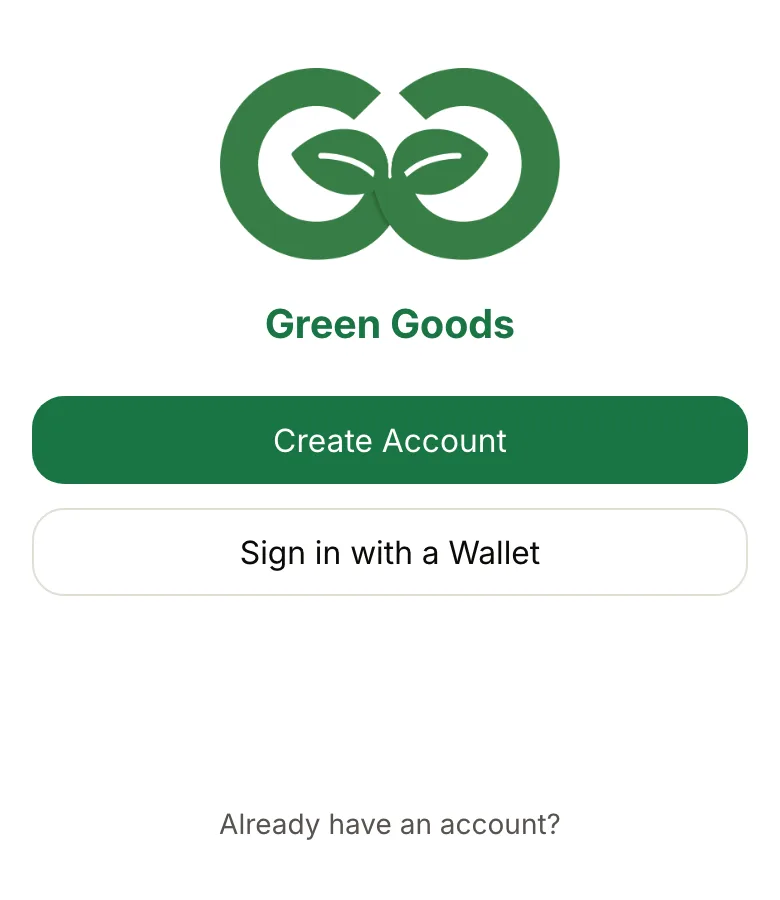
Already have an account? Tap Already have an account?, enter your name, and tap Sign in with Passkey. Your passkey usually travels with your Apple or Google account, so the new phone needs to be signed in to that same account.
Keep access to the passkey you created. If your passkey manager did not save or sync it, signing in to an Apple or Google account alone will not restore it. Green Goods cannot replace a lost passkey for you.
How you know it worked
- Android: a message says App installed, then Getting it ready to work offline, and finally Ready to work offline. On a fast connection the middle step can pass too quickly to see. On an iPhone there is usually no message. The icon on your home screen is the sign.
- After signing in: you land on Home. The first time, a message says You're signed in and offers Open Help.
What happens next
Nothing is waiting on anyone else. Your next step is to join the garden you work with.
In the background, the app saves what it needs to work without a signal. You can watch it under Profile, on the Account tab, in the Offline row. It keeps your gardens' work lists, plus photos for the garden you have open and for your own work. Pause stops it and Resume continues. If your phone has Data Saver on, photos wait until you tap Resume or turn Data Saver off.
Update the app
Green Goods checks for a new version when you open it and when you come back to it. An update never applies on its own. It waits for you, so it cannot interrupt work you are in the middle of.
- Open Profile and stay on the Account tab.
- Under Settings, find the Update row.
- Tap Check. If a new version is ready, tap Restart.
- The app reloads and says Updated.
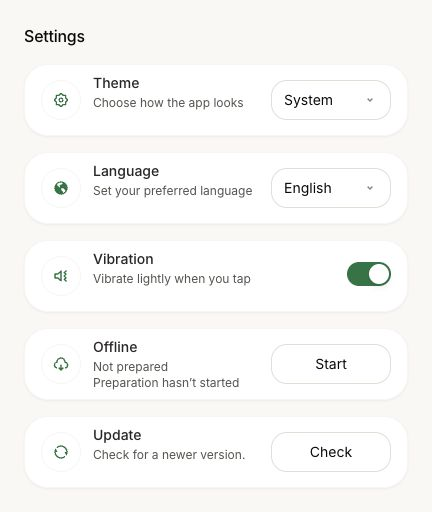
If you leave the app open for a long time, a message may offer Restart to Update. It does the same thing.
While the row says Looking for a newer version or Installing the latest version, wait. You can keep working while it downloads. No update available means you already have the current version.
If it says Finish saving or sending your work before restarting, let that operation finish, then tap Restart again. Work that is only waiting to upload does not block the update.
If it says Couldn't finish. Try again, check your connection and tap Try Again. If it asks you to Close every app window, then open it again, close the app and any browser tabs on the same site, then reopen it from the home screen.
Two tips for updating:
- Update while you have a connection, not in the field. A restart with no signal still works, but the app cannot fetch its newer files until you are back online.
- Send what is waiting first. Open Your Work and tap Upload all. The update will not lose it. Uploading needs a connection, and the field often does not have one.
Clearing the browser's site data or storage for Green Goods deletes work you have not sent: drafts, and anything waiting in Your Work. Removing the app from your phone can do the same. There is no button for this in the app, because it is never a safe fix. If you are stuck, use the list below.
If something goes wrong
You cannot install, or you only see the website
On Android, tap Open in Chrome if Green Goods asks you to switch browsers. On iPhone, tap Copy Link and open it in Safari. Links opened inside a chat app may need the same step. Once installed, use the home screen icon; a browser tab keeps showing the website.
You cannot sign in
Check your connection and use the same account route as before. For passkey sign-in, the passkey must be available on this device or a nearby phone. Do not create another account to recover your existing membership.
The update keeps asking you to restart
Close every app window and browser tab on the same site, then open Green Goods again. If the app looks unchanged after restarting, try the same step. “Close fully” means removing it from your recent apps, not only returning to the home screen.
An iPhone photo will not attach
The app may still need to download the file that reads iPhone photos. Turn Data Saver off, open the app on a good connection, and give it a minute. Your work still saves.
Still stuck? Open Profile, then the Help tab, and tap Telegram to ask the community.
Next step
The app is installed and you are signed in. Now join the garden where your work belongs.