Remove an Endowment
Take some or all of your endowment back out. There is no lock-in and no notice period, and the money returns to the wallet you deposited from. What you can take out at a given moment depends on what is available, which is explained below.
Before you start
- Use the wallet you endowed from. An endowment belongs to the wallet that made it.
- Keep a little ETH on the Arbitrum network for the fee.
- Check the amount carefully. There is no second screen to review it. The button sends the withdrawal.
Steps
- Open greengoods.app/fund.
- Tap Manage Endowments, beside Find a Garden to support.
- In Your Endowments, tap Connect Wallet and connect the wallet you endowed from.
- Under What you've supported, find the garden and the token.
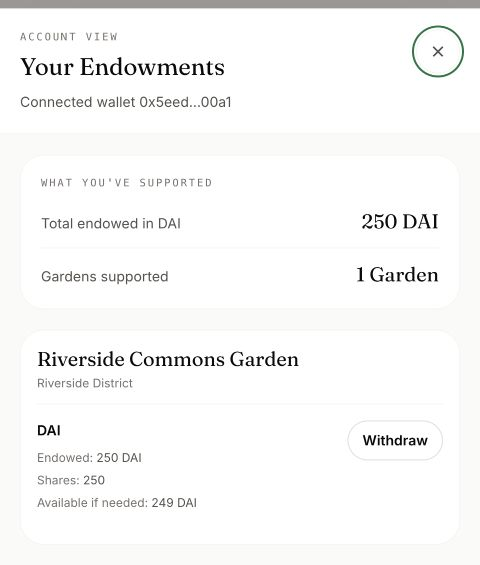
- Tap Withdraw on that row.
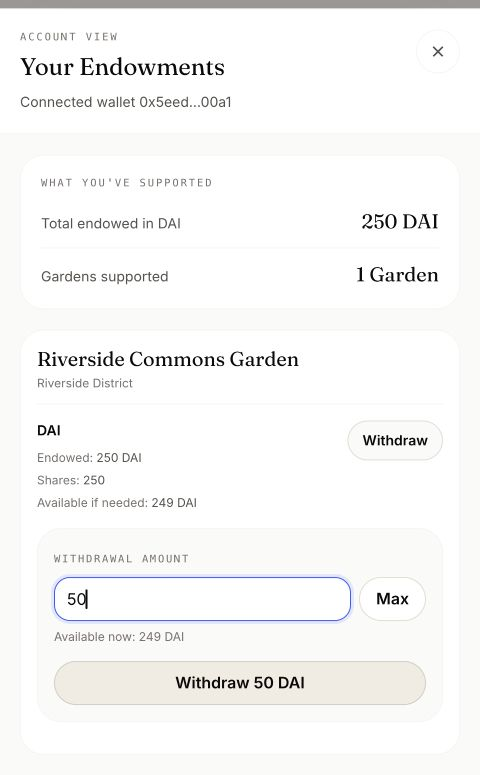
- Enter the Withdrawal amount, or tap Max to take everything that is available now.
- Check that you accept the withdrawal's allowance of up to 1% loss during processing. The amount received can be lower than the amount you request.
- Tap the button that reads Withdraw and your amount, then confirm in your wallet.
What the numbers mean
| On screen | What it is |
|---|---|
| Endowed | Everything you have ever deposited in this garden with this token. It does not go down when you withdraw |
| Shares | Your part of the endowment, as the endowment counts it |
| Available if needed | What you could take out right now |
| Available now | The same amount, shown beside the withdrawal box |
Available is the number to trust. It can be lower than what you put in if the place the money is held has lost value, or is short of funds at this moment.
How you know it worked
- A message says the amount was returned to your wallet. It uses the amount requested, so it is not proof of the exact amount received.
- The row's Available if needed updates once the records catch up.
- Check your wallet's transaction and the token amount actually received. This is the result to rely on.
What happens next
Nothing else is needed. Whatever you leave in remains deposited and may earn support for the garden; earnings are not guaranteed. You can deposit again whenever you like, from Endow a Garden.
If something goes wrong
| What you see | What to do |
|---|---|
| No endowments for this wallet yet | No current endowment is shown for this wallet. Check the wallet you connected; a recent deposit can take a moment to appear. A fully withdrawn endowment no longer appears here |
| Amount is higher than the current withdrawable amount | Enter less, or tap Max |
| Available if needed reads Unavailable | The page could not read the amount. Close the panel and open it again |
| Available is less than you deposited | The endowment may have lost value, or funds may be temporarily unavailable. Losses can be permanent; do not assume the difference will become available later |
| Enter a valid number, or Too many decimal places | Fix the amount |
| Transaction canceled | You closed the wallet's confirmation. Nothing was withdrawn |
| Transaction failed | One cause is that not enough can be paid out right now for the amount you asked. Try a smaller amount, or try later |
For anything else, ask in the Green Goods community on Discord.
Stewards, and people who already hold a deposit, can also withdraw inside the Green Goods app. Open the garden, tap the endowment button at the top, and use Withdraw under My deposits. That path asks you to confirm before it sends.
Next step
Compare donating and endowing again, or read what Green Goods does and does not promise.