Endow a Garden
An endowment is a deposit, not a gift. The deposit belongs to your wallet, and you can request a withdrawal. It is used to earn support for the garden; neither earnings nor the amount you can withdraw is guaranteed. It is a way to support a garden for as long as you leave the deposit in place.
Read the next section before you deposit. An endowment carries risks a donation does not.
What you are agreeing to
- Where the money sits. Your deposit goes into the garden's endowment, which lends it out through a lending market outside Green Goods to earn interest.
- Where the earnings go. Not to you. The configured split can support the garden's shared fund, impact certificates and the Green Goods protocol. The proportions and available destinations depend on the garden's configuration; ask its steward to show you the split.
- Your deposit is not guaranteed. If the lending market loses money, your share of the loss comes out of your deposit. You can get back less than you put in.
- Withdrawals depend on what is available. There is no lock-in and no notice period. If the lending market is short of funds when you ask, you may only be able to take part of it out, or have to try again later.
- The token's price is your risk. A deposit in WETH is worth more or fewer dollars as the price of ETH moves.
- The software around it can change. Green Goods can upgrade the contracts that manage endowments and route their earnings.
If any of that is not acceptable, donate, or do not give.
Before you start
- A crypto wallet, with DAI or WETH on the Arbitrum network and a little ETH there for the network fee. The page does not take cards, and it does not convert other tokens for you.
- A garden you want to support. Read its approved work first, on its page at greengoods.app/gardens.
- Use a wallet you will keep. Your endowment belongs to the wallet that made it. You need the same wallet to take it back out.
Steps
1. Choose the garden
- Open greengoods.app/fund.
- Under Find a Garden to support, find the garden.
- Tap Endow on its row. A window opens titled Endow to, with the garden's name.
If the garden has no endowment fund configured, choose another garden or donate.
2. Set the amount and currency
- Enter the Amount, in dollars by default.
- Under Payment currency, choose DAI or WETH, according to what the garden accepts and what you hold. With WETH selected, Enter amount in lets you switch between dollars and WETH. Check the unit beside the amount.
- Tap Connect Wallet if your wallet is not connected yet.
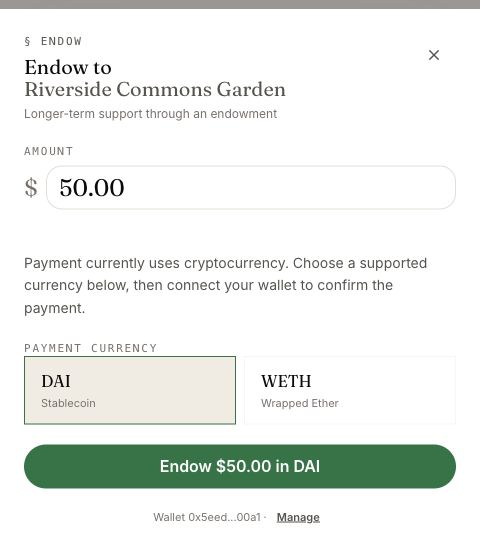
If the live ETH price is unavailable, choose DAI or try again later. The page cannot convert other tokens for you.
3. Confirm the deposit
- Check the garden, amount, and currency again.
- Tap the button that reads Endow, your amount, and the token, then confirm in your wallet. The first time you use a token, your wallet asks twice: once to allow the token to be spent, and once for the deposit itself.
- Keep the window open while it sends. If you cancel, the deposit is not made.
How you know it worked
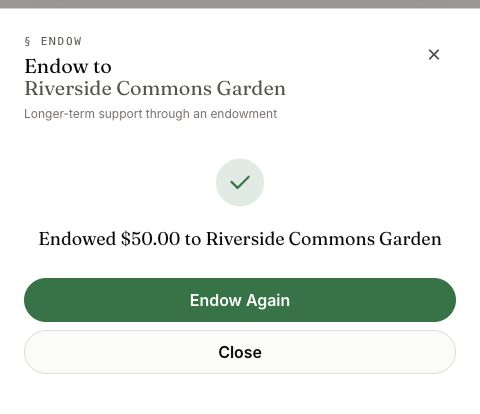
- The window says Endowed, with your amount and the garden's name.
- Your wallet's history shows the transaction on Arbitrum.
- On the Fund page, Manage Endowments now lists your deposit. It can take a moment to appear.
What happens next
Your deposit is in place, and it is yours.
- The garden's side. Earnings can build up over time. A steward or owner collects them from the endowment. Once collected, anyone can trigger their distribution when its conditions are met, so the garden does not control payout timing exclusively. The dashboard offers both steps together. A deposit does not itself trigger a payout, and future earnings are not guaranteed.
- Your side. You can check your deposit, and take some or all of it out, from Manage Endowments. See Remove an Endowment.
If something goes wrong
Payment options will not load
For We couldn't load payment options for this garden, close the window and try again. If deposits are paused, choose another garden or ask the garden's steward.
Your wallet cancels or the transaction fails
Transaction canceled means no deposit was made. For Transaction failed, read the message. Check that you have enough of the chosen token and enough ETH on Arbitrum for the fee before trying again.
Your deposit is not listed
Connect the wallet you deposited from, then give Manage Endowments a moment to catch up. Check the transaction in your wallet before repeating it.
For anything else, ask in the Green Goods community on Discord.
Green Goods does not promise a charitable receipt, nonprofit backing or a tax deduction. Ask the garden about any separate arrangement. Endowment earnings support the garden's configured destinations rather than earning a return for you.
Next step
Learn where the withdraw control is before you need it.