Make an Initial Assessment
An assessment is a garden's "before" picture and its plan. It says what the problem is, what the garden will measure, and by when. Write it before the work it describes, so there is something to compare against later.
Evaluators, stewards, and owners can all write one. If you are new to the role, read the Evaluator Guide first.
Before you start
- Have the evaluator, steward, or owner role in the garden, and check that its name shows at the top left of the dashboard.
- Pick one area of work. Each assessment covers one: Solar, Agroforestry, Education, or Waste. A garden that does two needs two assessments.
- Know the problem in a sentence or two: what is wrong, and why.
- Have at least one outcome you can measure, with a number to aim for.
- Know the dates the assessment covers.
- Read it twice before you submit. An assessment cannot be changed afterwards.
What makes a good outcome
An outcome is a change you expect to see, a way to measure it, and a target. "Healthier soil" is a hope. "Soil organic matter, measured twice a year, from 1% to 2%" is an outcome. Pick the few that matter. More outcomes do not make an assessment stronger.
Steps
The form has four steps: Domain & Context, Challenge & Goals, Actions & Reporting Period, and Review. Nothing is sent until the last one. Your answers are saved on this device as you go. The screenshots use separate example assessments; enter the answers for your own garden.
1. Open the form
- Open Hub in the steward dashboard.
- Tap Create Assessment.
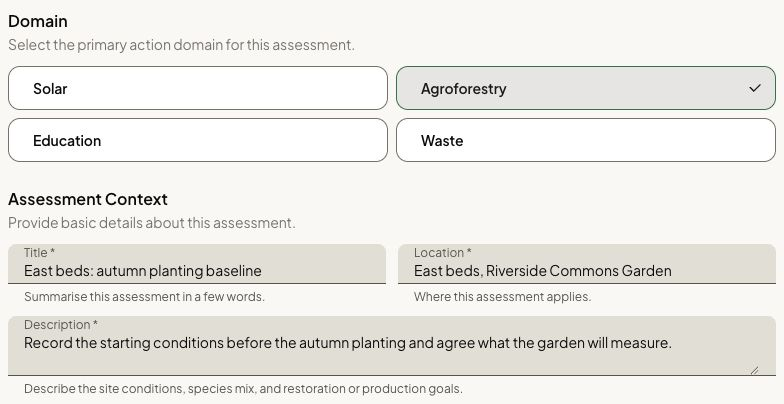
2. Domain & Context
- Under Domain, choose the area of work. Only the areas turned on for this garden appear, and none is chosen for you.
- Under Assessment Context, enter a Title that will still make sense in a year.
- Enter the Location.
- Write a Description of what the assessment covers.
- Tap Next.
3. Challenge & Goals
-
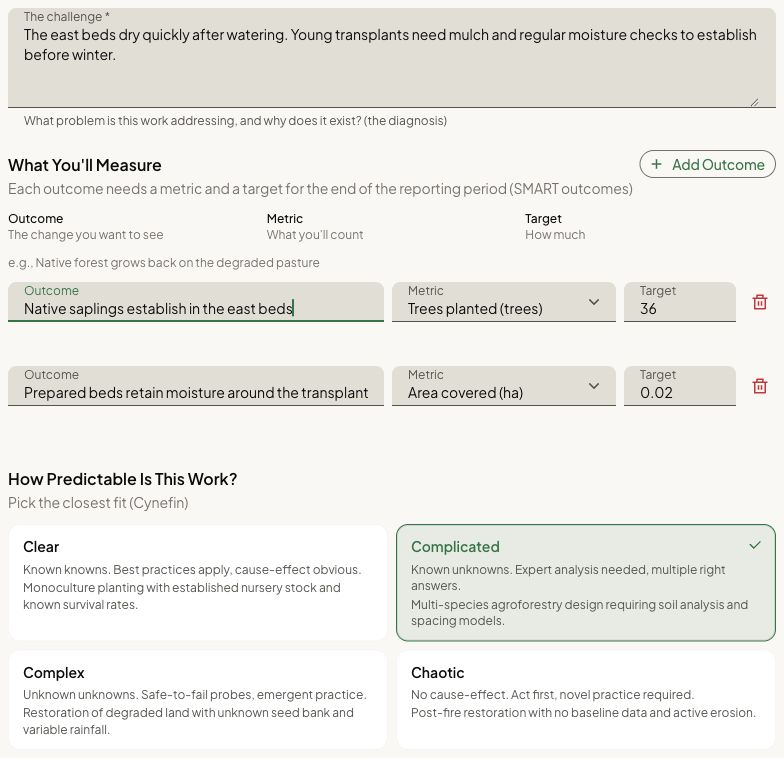
Under The challenge, describe the problem this work addresses and why it exists.
-
Under What You'll Measure, add each outcome: the Outcome, its Metric, and its Target. Tap Add Outcome for another. You need at least one complete outcome, and each metric can be used once.
-
Under How Predictable Is This Work?, pick the closest fit:
Choice Pick it when Clear The method is proven and you know what will happen Complicated It needs an expert's analysis, and there may be more than one right answer Complex You will only learn what works by trying small things and watching Chaotic It is an emergency. People have to act first and learn after -
Tap Next.
4. Actions & Reporting Period
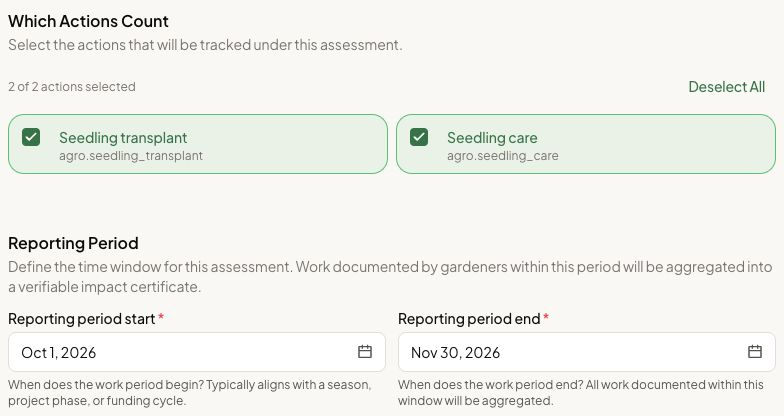
- Under Which Actions Count, select the actions this assessment covers. Only actions in the area you chose appear. This is optional.
- Under Reporting Period, set the start and the end.
- Tap Next.
5. Review and submit
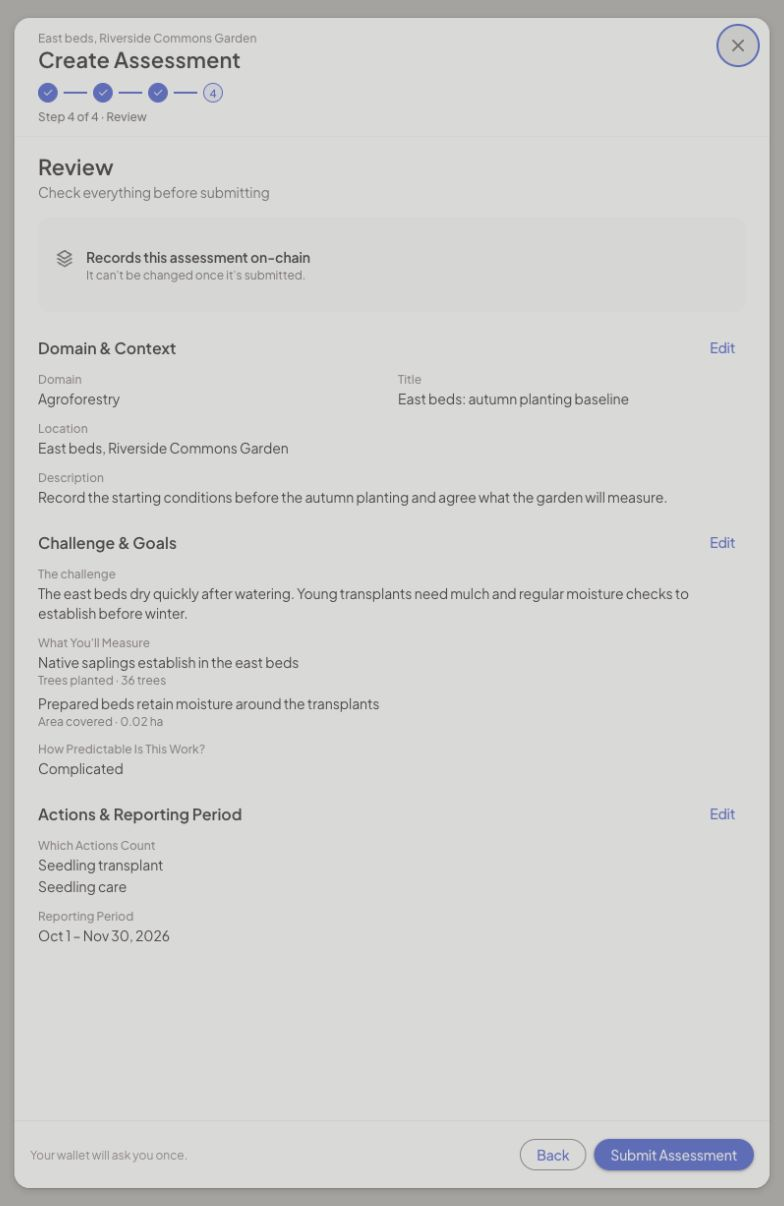
- Read each section. Anything you left empty shows as Not provided.
- Tap Edit on a section to go back and change it.
- Tap Submit Assessment and confirm. You are asked once.
- Keep the form open until it finishes.
How you know it worked
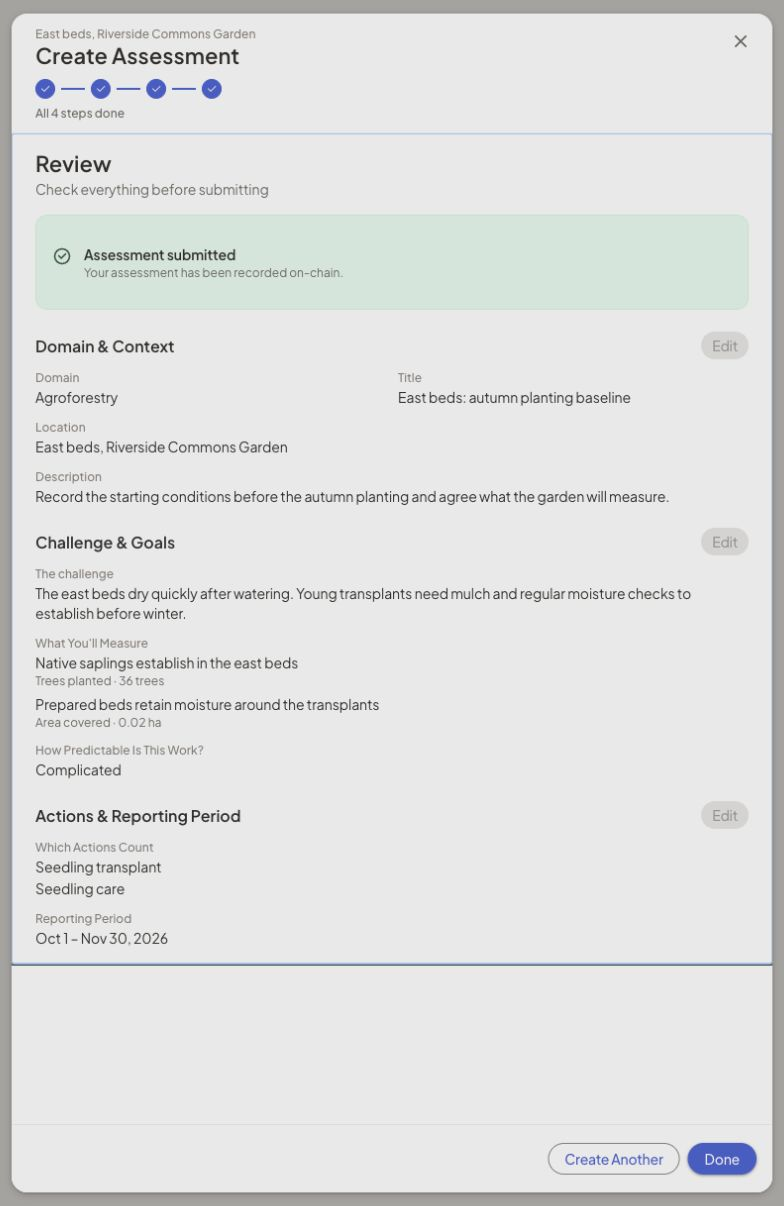
- The Review step reads Assessment submitted.
- Tap Done to return to the Hub, or Create Another to start a new one.
- The assessment appears on the Hub's Assessments tab, with its title, area of work, reporting period, and the date it was recorded. It can take a moment to show.
What happens next
Stewards act next. As work comes in, they review it with this assessment as the context for what the garden is trying to do. When a body of approved work is ready, a steward can start an impact certificate from the assessment's record.
The assessment is public. Anyone can read it, including funders deciding whether to support the garden.
If something goes wrong
Access or choices are missing
If Create Assessment is missing, ask a steward to add the evaluator, steward, or owner role. A missing area of work must be enabled under Edit Garden. An action from a different area belongs in a separate assessment.
A field is marked in red
Fill in the area of work, title, location, description, challenge, at least one complete outcome, and both dates. End date can't be before start date means the reporting period needs correcting. For Incomplete form, check the marked fields on each step.
The submission was canceled or failed
Your answers remain on this device. Read the status, then tap Try Again when you are ready. Keep the form open while it sends.
To reach the Green Goods team, ask in the Green Goods community on Discord.
Next step
With the baseline written down, stewards have something to review each submission against.